
An Amazon infographic image is a secondary listing image that uses short text, icons and callouts to explain your product at a glance. It is allowed in image slots 2 to 9, never in the main image. A good one answers one shopper question per image, uses three large callouts and stays readable on a phone. Here is how to design them step by step.
Where infographics are allowed
Your main image has to stay a clean product photo. Read our main image requirements for those rules. Everything after it is a secondary image, and that is where text overlays, arrows, icons, dimensions and lifestyle backgrounds are allowed. Most categories give you up to nine slots. Amazon still rejects misleading claims and low-quality images, so keep it honest and sharp.
7 types of Amazon infographic images
| Type | What it shows | Best for |
|---|---|---|
| Feature callouts | 3 key features pointing at the product | Almost every product |
| Dimensions | Clear measurements with a scale reference | Furniture, bags, storage, anything with size questions |
| What is in the box | Everything included, labeled | Kits, bundles, accessories |
| Comparison | Your product against a generic alternative, without naming a brand | Products with a clear advantage |
| How to use | 2 to 4 simple steps | Anything with a setup or routine |
| Lifestyle with callouts | The product in use with one or two highlights | Emotional or aspirational products |
| Close-up detail | A zoomed-in look at material or build quality | Products where quality is the question |
A 7-slot image order that works
- Main image: clean product on pure white.
- Feature callouts: the three reasons to buy.
- Lifestyle: the product being used in real life.
- Dimensions or size: remove the biggest doubt.
- What is in the box: everything included.
- How to use or compare: steps, or why yours is better.
- Trust image: materials, certifications or guarantees you can prove.
Order the images the way a shopper asks questions. What is it, why is it good, will it fit, what do I get.
How to design an Amazon infographic in 6 steps
- List the questions: read your reviews and competitor Q&A to see what shoppers ask.
- One message per image: if you cannot sum up the image in one sentence, split it.
- Sketch the layout: product big in the middle, callouts around it.
- Write short text: three to five words per callout.
- Design at 2,000 x 2,000 pixels: square works on all devices and enables zoom.
- Test on your phone: shrink it to thumbnail size and check that you can still read it.
Export as JPEG or PNG and keep each file under Amazon’s size limit, which is commonly 10 MB.
Design rules that make infographics convert
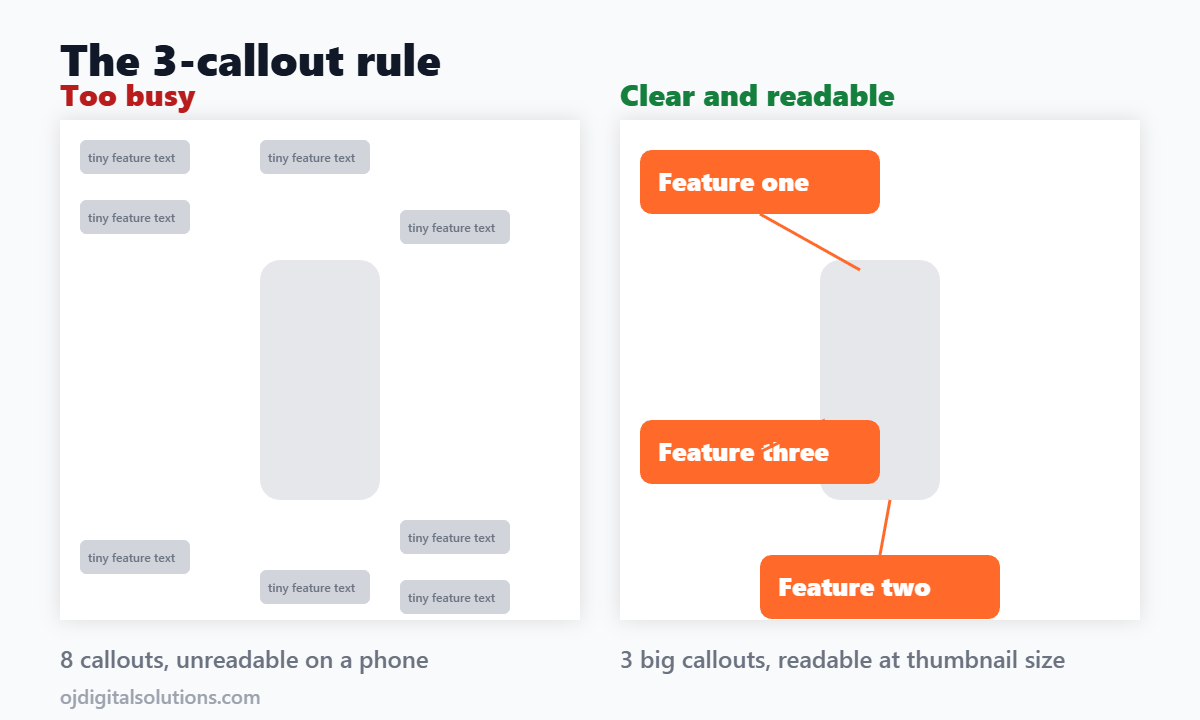
- Use the 3-callout rule: three big callouts beat eight small ones.
- Make text large and high contrast: dark text on a light panel, or the reverse.
- Use two fonts at most: one bold for headings and one clean for details.
- Choose icons over sentences: a small icon plus two words works faster than a paragraph.
- Stay consistent: the same colors, fonts and photo style across all your images and your A+ Content.
- Keep claims honest: facts, sizes and materials, not unproven superlatives.
- Leave breathing room: crowded images feel cheap and are hard to read.
Common infographic mistakes
- Too many callouts and text that is tiny on mobile.
- Repeating the same feature on three images.
- Hiding the product behind graphics.
- Using a different style on every image.
- Making claims you cannot prove.
DIY or hire a designer?
A simple product with a few features can be built in Canva or similar tools if you follow the steps above. If the product is a big seller, or you want images that match your A+ Content, hiring a specialist often pays off. See our price guide for typical ranges, or look at our Amazon design services.
Frequently asked questions
Are infographics allowed on Amazon listings?
Yes, but only in the secondary image slots. The main image must stay a clean product photo on a pure white background with no text or graphics.
How many images can I upload to an Amazon listing?
Up to nine in most categories, though the product page usually shows around seven. Use every slot, because each one answers a question the shopper has.
What size should an Amazon infographic be?
Secondary images follow the same technical rules as the main image. Most sellers design square at 2,000 x 2,000 pixels, because at least 1,000 pixels on the longest side is needed for zoom, and larger is safer.
How many callouts should one infographic have?
Aim for three, and never more than five. Too many callouts turn into tiny text that nobody can read on a phone.
Can I put claims like best or number one on an infographic?
Avoid them. Misleading or unproven claims can get images rejected, and they hurt trust. Use facts that you can back up, such as sizes, materials and what is included.
Should I make infographics myself or hire a designer?
A simple product with a few features can be done in a tool like Canva. For a big seller, a designer who knows Amazon rules usually pays for itself through better conversion.
Bottom line
Keep the main image clean and make every other slot answer one question. Three big callouts, short text and consistent style will beat a crowded image every time. Check the result on your phone before you upload.